Use Terrain with the testnet
The Pisco testnet is used for testing transactions on the Fluid network.
Prerequisites
Create a Pisco wallet
Create a new wallet using the Fluid Station extension. It's recommended that you name this wallet "Pisco" or "testnet" so it's easy to remember.
After creating a Pisco wallet and storing the seed phrase, request funds from the testnet faucet:
Make sure you have your seed phrase stored somewhere. You will need it to complete this tutorial.
Counter tutorial
After creating a testnet wallet, you are ready to use Terrain. This short tutorial walks you through setting up your project and creating a simple counter that increments upon request.
1. Scaffold your dApp
Scaffold your new application:
_3terrain new my_terra_dapp_3cd my_terra_dapp_3npm install
Project structure
The following structure shows your scaffolded project:
_10._10├── contracts # The contracts' source code._10│ ├── my_terra_dapp_10│ └── ... # Add more contracts here._10├── frontend # The front-end application._10├── lib # Predefined functions for task and console._10├── tasks # Predefined tasks._10├── keys.terrain.js # Keys for signing transactions._10├── config.terrain.json # Config for connections and contract deployments._10└── refs.terrain.json # Deployed code and contract references.
2. Configure the testnet
Before deploying, Terrain needs to learn how to access your Pisco wallet. To do this you'll need to modify keys.terrain.js in the generated project.
Modify the configuration and input your seed phrase to look like this:
_6module.exports = {_6 pisco: {_6 mnemonic:_6 "PLACE_YOUR_PISCO_SEED_PHRASE_HERE",_6 },_6};
3. Deploy
To deploy the application, run the following command:
_1terrain deploy my_terra_dapp --signer pisco --network testnet
The deploy command performs the following steps automatically:
- Builds the counter smart contract.
- Optimizes the counter smart contract.
- Uploads counter smart contract to testnet.
- Instantiates the deployed smart contract.
If you get the following error:
_1CLIError: account sequence mismatch, expected 1, got 0: incorrect account sequence
Wait a few seconds then try the deploy command again.
3. Generate TypeScript client
Terrain 0.5.x and above includes the ability to automatically generate a TypeScript client based on your smart contract schema.
Generating a client is easy, just run the following command:
_1terrain contract:generateClient my_terra_dapp --build-schema
The generated client will be put in ./lib/clients and copied to the frontend.
4. Interact with the deployed contract
The Terrain template comes with several predefined helpers in lib/index.js. Use them to start interacting with your smart contract:
-
Run
terrain console --network testnet --signer pisco. -
With the console open, increment the counter by running the following:
_1await lib.increment();
You can get the current count by using:
_1await lib.getCount()
- After incrementing once,
await lib.getCount()will return:
_1{ count: 1 }
5. Front-end scaffolding
Terrain also scaffolds a very simple front-end.
-
In the Fluid Station Chrome extension, switch the network to
testnet. -
To use the front end, run the following commands in order.
_3cd frontend_3npm install_3npm start
- With
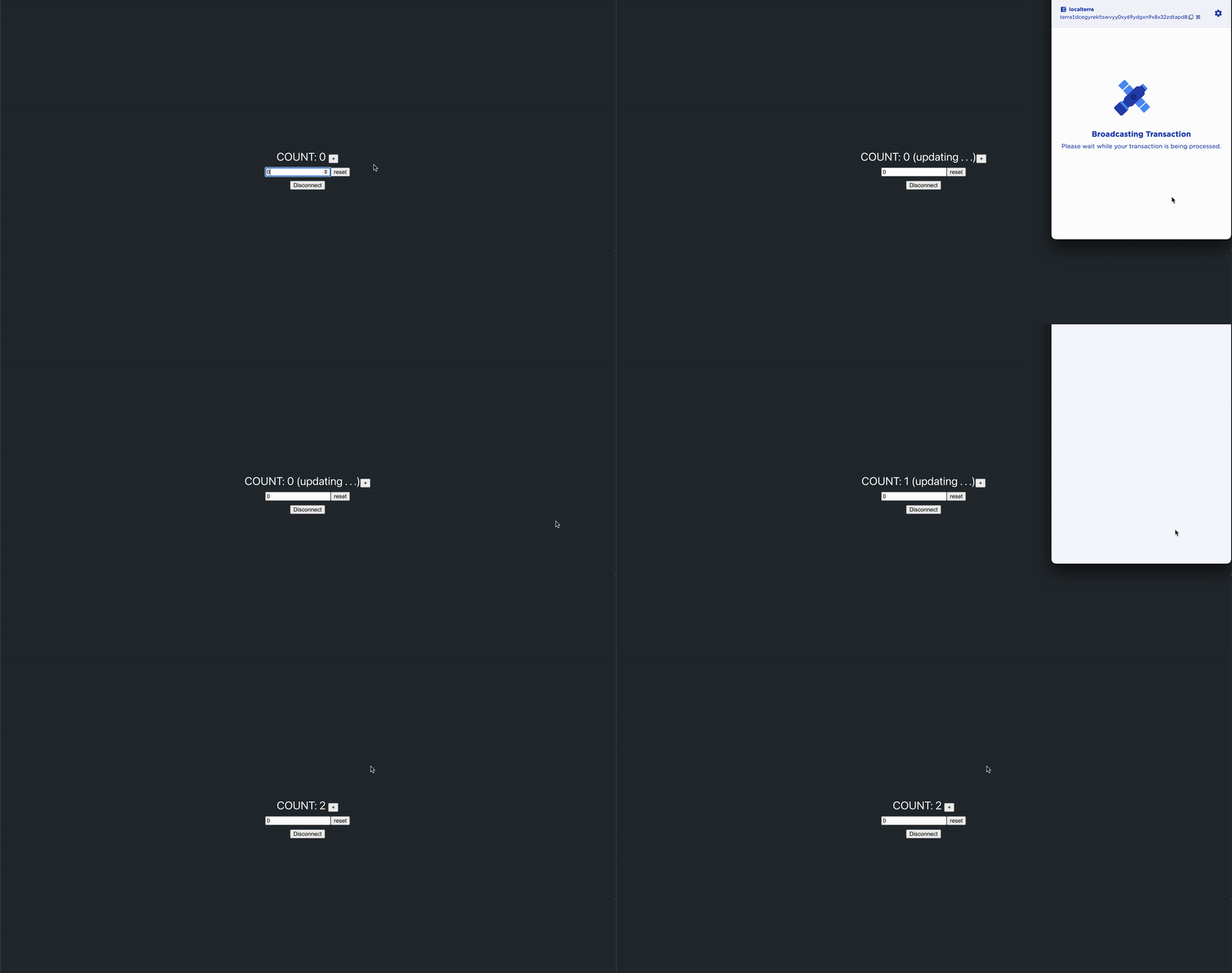
testnetselected in Fluid Station you can now increment and reset the counter from the front end.
Demo
Advanced usage
For more advanced use cases such as deploying to the testnet or mainnet, see Terrain's readme.