Connect your Station Wallet to Keplr
Use this guide to connect your Fluid Station wallet to a Keplr wallet using a Chrome browser.
Prerequisites
- Download Google Chrome.
- Download the Fluid Station Chrome extension and create a wallet.
- Make sure you have a copy of your seed phrase written down.
- Purchase LUNA or other tokens to fill your wallet.
Download Keplr
- Visit https://www.keplr.app/ and click Install Keplr for Chrome.
- In the Chrome web store, click Download.
Import your Fluid Station wallet
- Click on the Keplr browser extension in your browser.
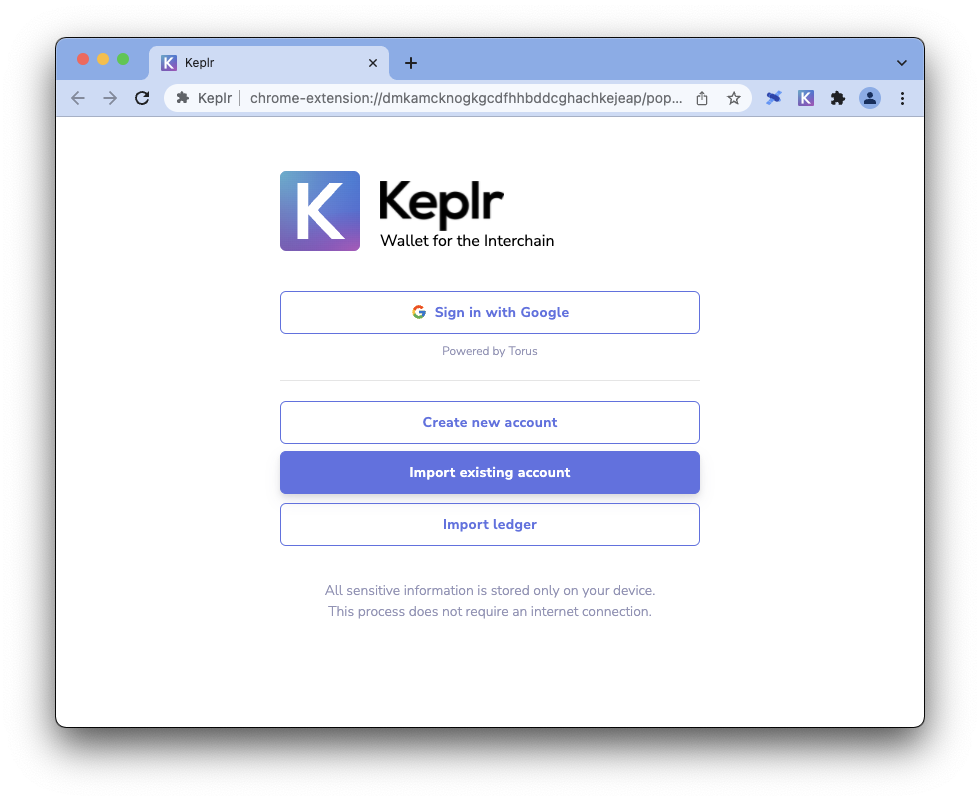
- Click Import existing account.
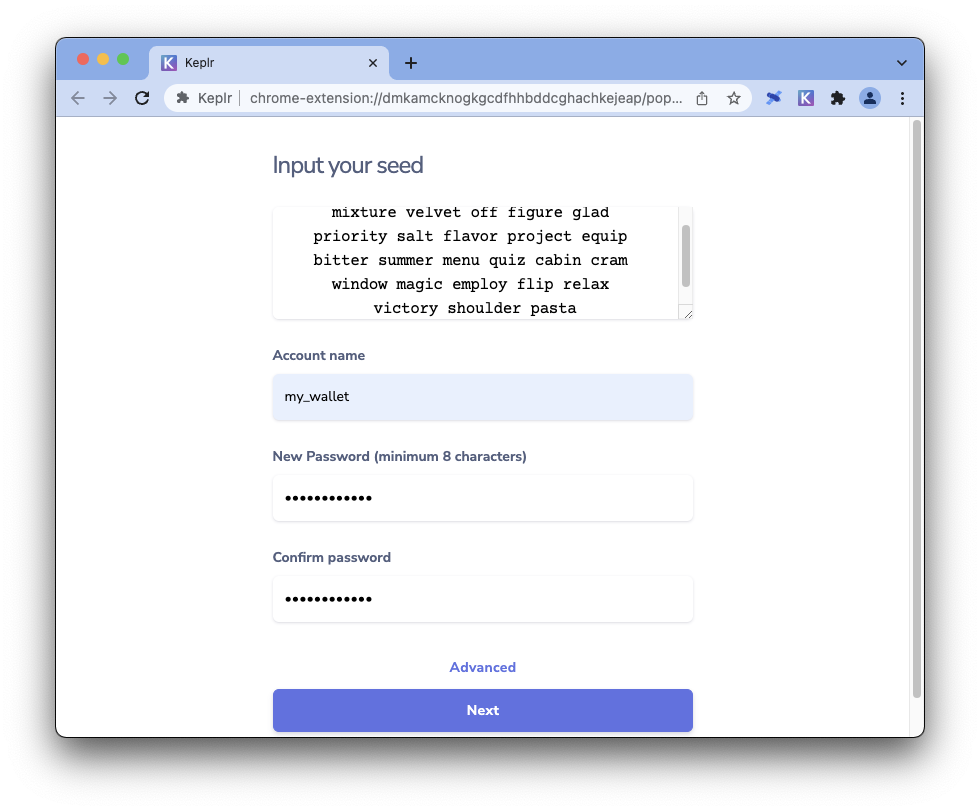
- Enter the seed phrase from your Fluid Station wallet, create an account name, and enter a password.
-
Confirm your password and click Next.
-
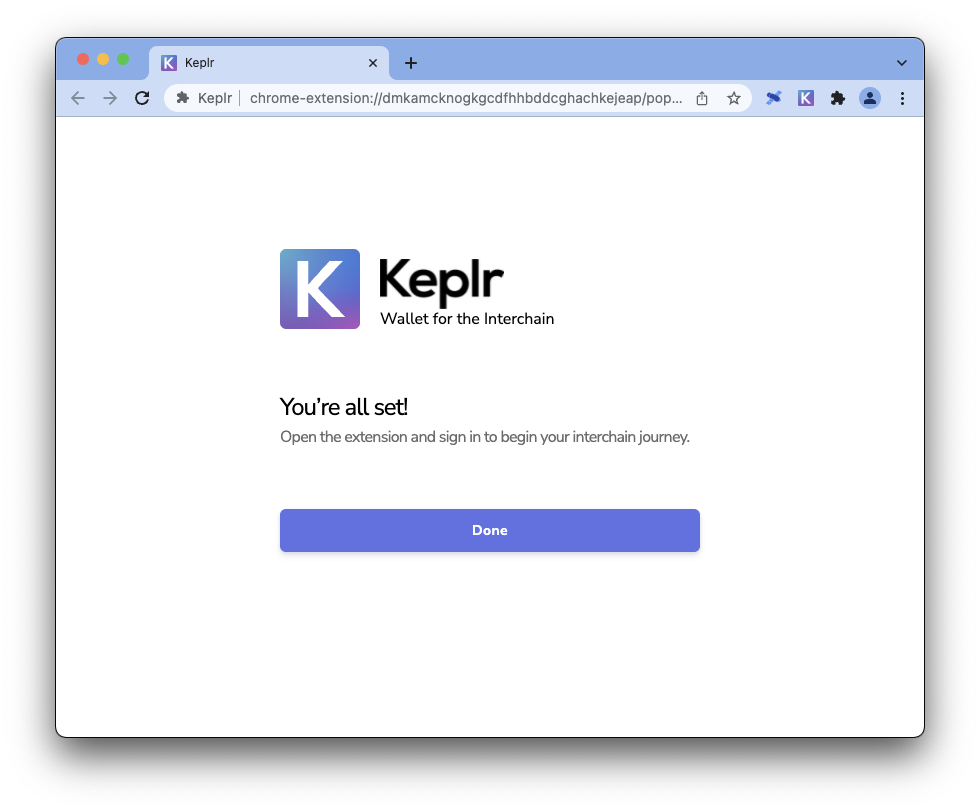
Click Done.
Enable Fluid on Keplr
-
Open the keplr extension and enter your password.
-
Click Unlock. Your wallet will appear. follow the next steps to access Fluid on your wallet.
-
Navigate to any bridge or transaction site that allows you to connect to Fluid with Keplr.
-
Some sites may ask to connect to your wallet. If you have confirmed that the URL is correct and that the site is safe, connect your wallet by clicking Approve.
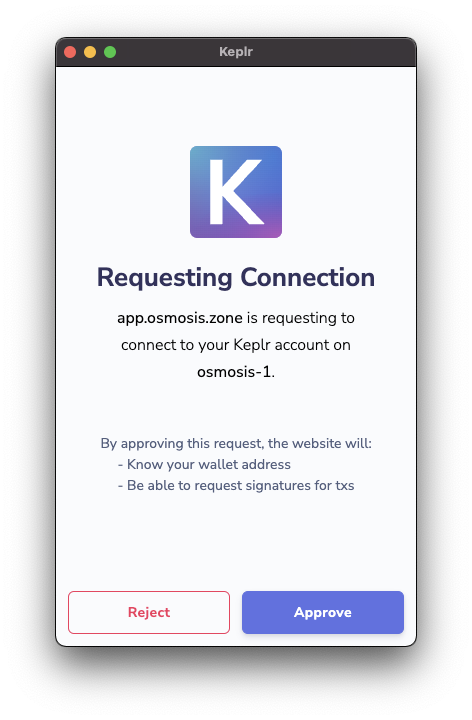
Only connect your wallet to sites you trust. Connecting your wallet to unsafe sites can result in a loss of funds. Always double-check the URL.
-
Navigate to the site's Fluid deposit button. Click deposit. Some sites may have a different interface.
-
Your wallet extension will ask you to approve a Chain Add Request.
-
Click Approve
-
Click Approve again.
-
Click on your Keplr extension to open it.
-
Click the chain selector at the top of the window.
Scroll down to select Fluid.
Your Keplr wallet will show your available Fluid coins.
Congratulations, you can now use Fluid on a Keplr wallet!